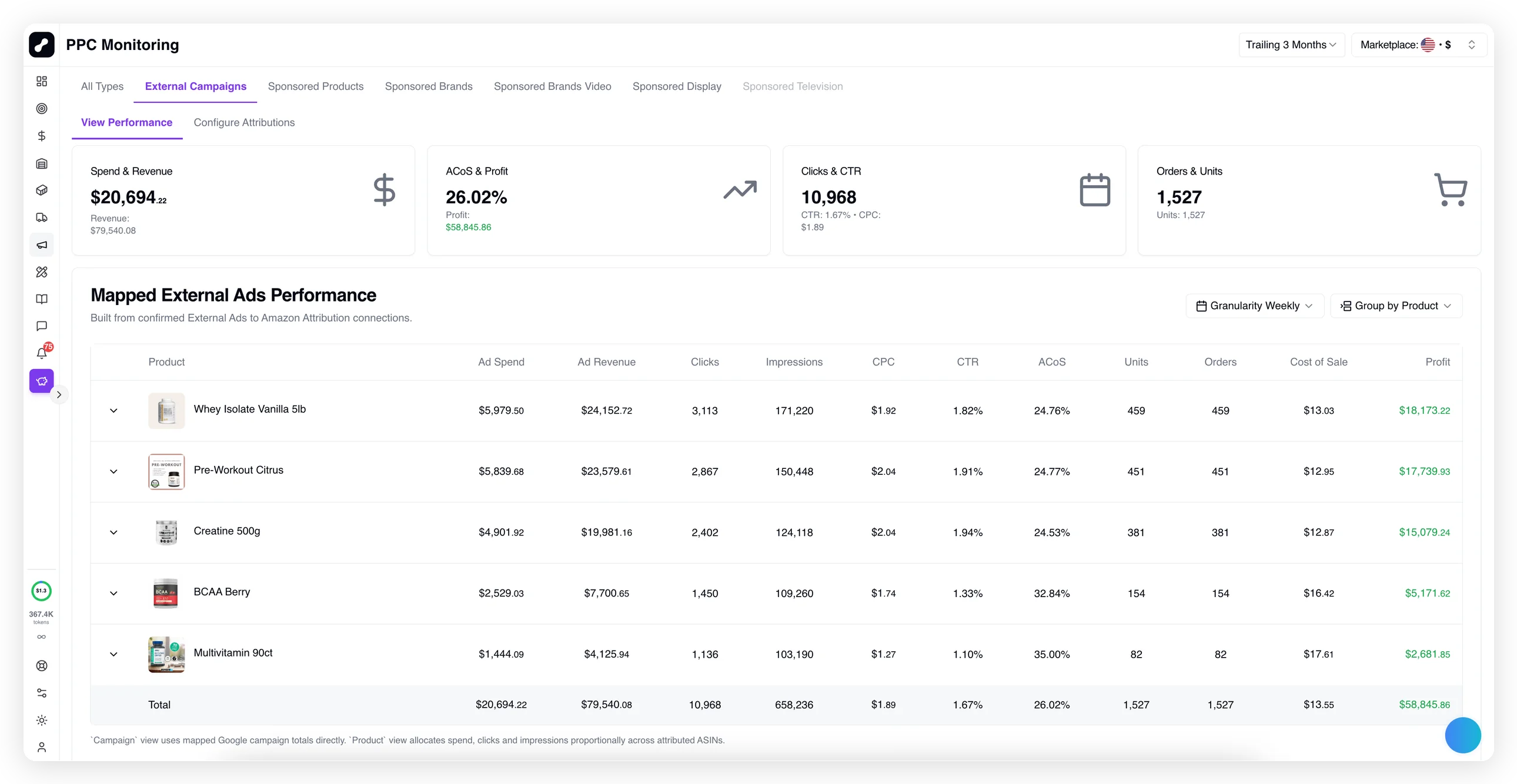
External Ads: See True Per-SKU Profit
With All Ad Spend Inside — Amazon, Google, Meta and Influencers

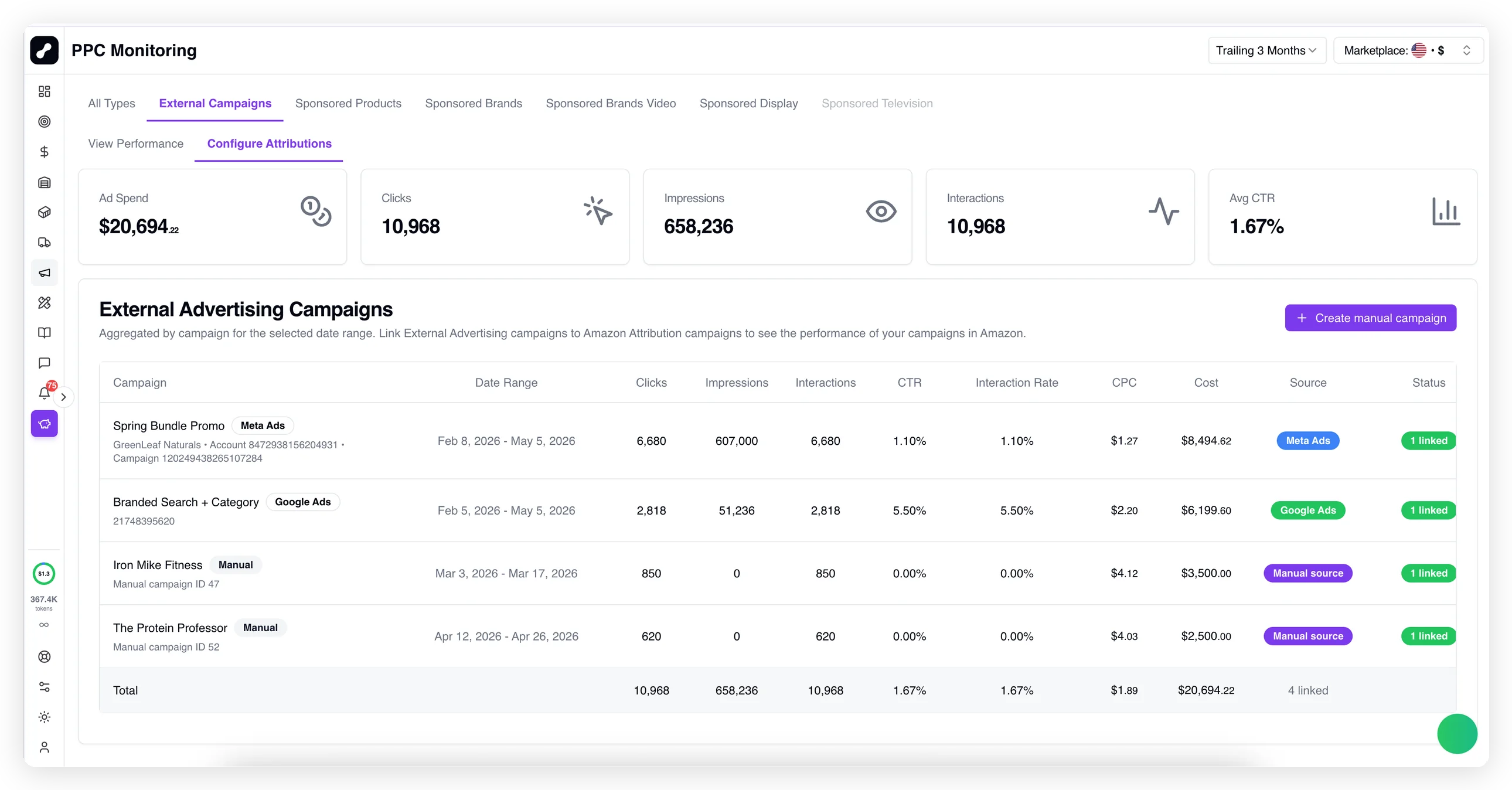
Connect your Google and Meta ad accounts (TikTok coming soon), and log influencer campaigns manually — every dollar gets attributed to the right product and period, automatically

No credit card required

2 weeks free 

Included in Dashboards plan

True FBA Profit Counts Every Cost — Including Off-Amazon Ad Spend

PROPAMP AI pulls data for every off-Amazon campaign from two sources — campaign results from Amazon Attribution (sales per product, plus interim metrics like clicks and impressions) and ad spend from your off-Amazon ad platforms — and ties every dollar to the right product.

The result: off-Amazon ad spend and performance land directly in your profit tracking reports.

Use Case 1

Restock FBA from the Closest Source

When your FBA stock runs low,
our reports show where your units sit across all other locations —
so you can pull from the closest one instead of ordering new stock.

The route:

1
Check remaining stock per marketplace — open Inventory -> Stock Panel -> Inventory Level.

You'll see FBA, AWD, and 3PL balances side by side for the marketplace you pick.
2
Check what you can pull from AWD — open Inventory -> AWD Storage.

You'll see On-hand and Available quantities and the status of each batch.
3
Check what's at each 3PL — open Inventory -> Stock Panel -> 3PL Stock.

You'll see the breakdown across your warehouses with the current balance per SKU.
4
Check what's already on the way to FBA — open Inventory -> Stock Panel -> All Inventory.

The forecast graph shows current stock and arriving units from active shipments.
Result:
in seconds you know where to pull from — or whether a new order is actually needed.

2 weeks free 

No credit card required

Included in Pro plan

Use Case 2

Skip the New Purchase Order
If the Stock Is Already Yours

Before placing a new order with your supplier, take ten seconds to check whether that batch is already at a 3PL, at AWD, or at the supplier with no destination yet (Unallocated).

The route:

1
Check the full picture across your supply chain — open Purchase Orders -> Dashboard.

The Sankey diagram shows where each batch is and how much is still Unallocated.
Video thumbnail
2
Check what's at each 3PL — open Inventory -> Stock Panel -> 3PL Stock.

You'll see the current balance per SKU across your warehouses.
3
Check what's at AWD — open Inventory -> AWD Storage.  

You'll see On-hand and Available quantities per SKU.
Result:
the decision "order / don't order / order less" takes seconds instead of hours of manual checks.
See where every unit sits — and decide your next move in seconds
Or let Claude Code plan your restocking

Connect your AI agent (Claude Code or OpenAI's Codex)
via PROPAMP AI MCP server — it will pull your stock data across all locations into a table automatically with one prompt

2 weeks free
No credit card required
 Included in Pro plan