Stock Tracking Tools:
Know Where Every Unit Sits —
At a Glance, Not After Hours of Digging

Your stock could be spread across FBA, AWD, 3PL, your supplier, or your own warehouse — in any combination. Get a clear picture of what's where and how much, in one view

No credit card required

2 weeks free 

Included in Pro plan
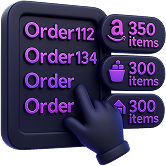
Your Stock Can Sit in Multiple Places at Once. You Need One View

Your units can be scattered between FBA, FBA in transit, AWD, a 3PL warehouse, your supplier's warehouse, or your own. To figure out where everything sits and how much, you end up pulling data from several places and matching the numbers by hand.

Our reports show you how many units of each SKU you have in every location at a glance. You start with the full picture and easily drill down to the breakdown when you need it. No more digging through multiple sources — you follow a short route and read the numbers straight off the screen.

Use Case 1

Restock FBA from the Closest Source

When your FBA stock runs low,
our reports show where your units sit across all other locations —
so you can pull from the closest one instead of ordering new stock.

The route:

1
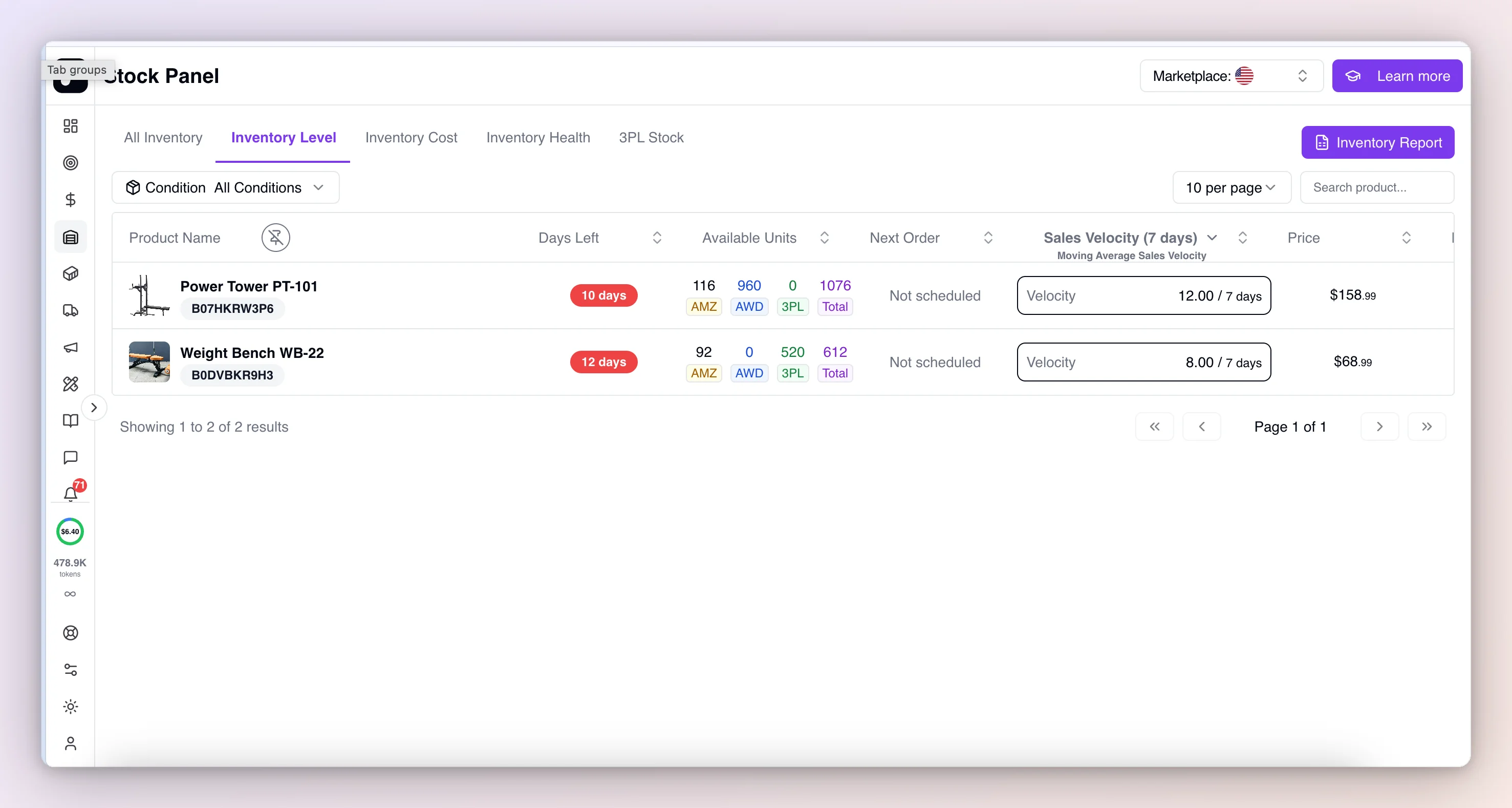
Check remaining stock per marketplace — open Inventory -> Stock Panel -> Inventory Level.

You'll see FBA, AWD, and 3PL balances side by side for the marketplace you pick.
2
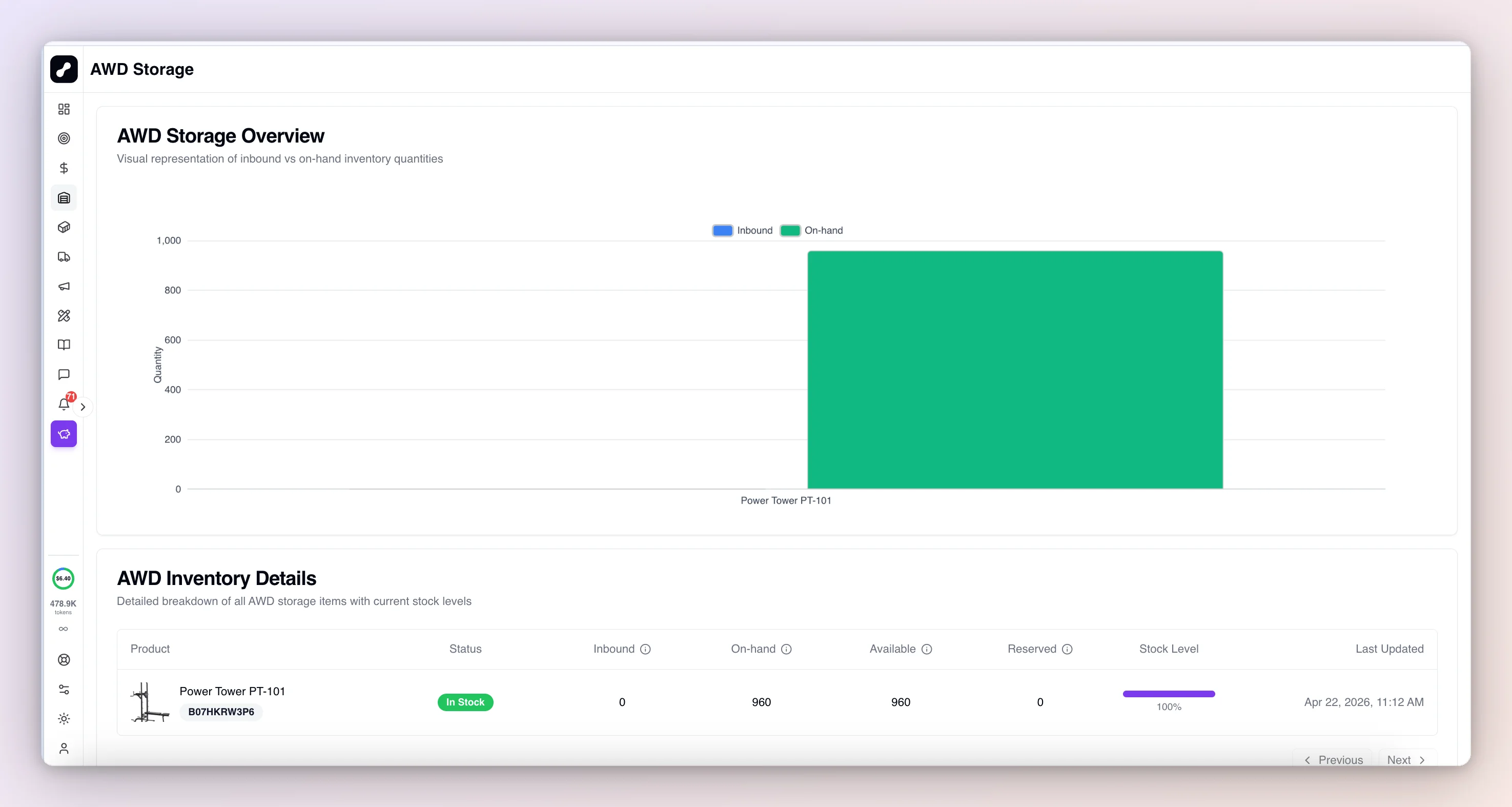
Check what you can pull from AWD — open Inventory -> AWD Storage.

You'll see On-hand and Available quantities and the status of each batch.
3
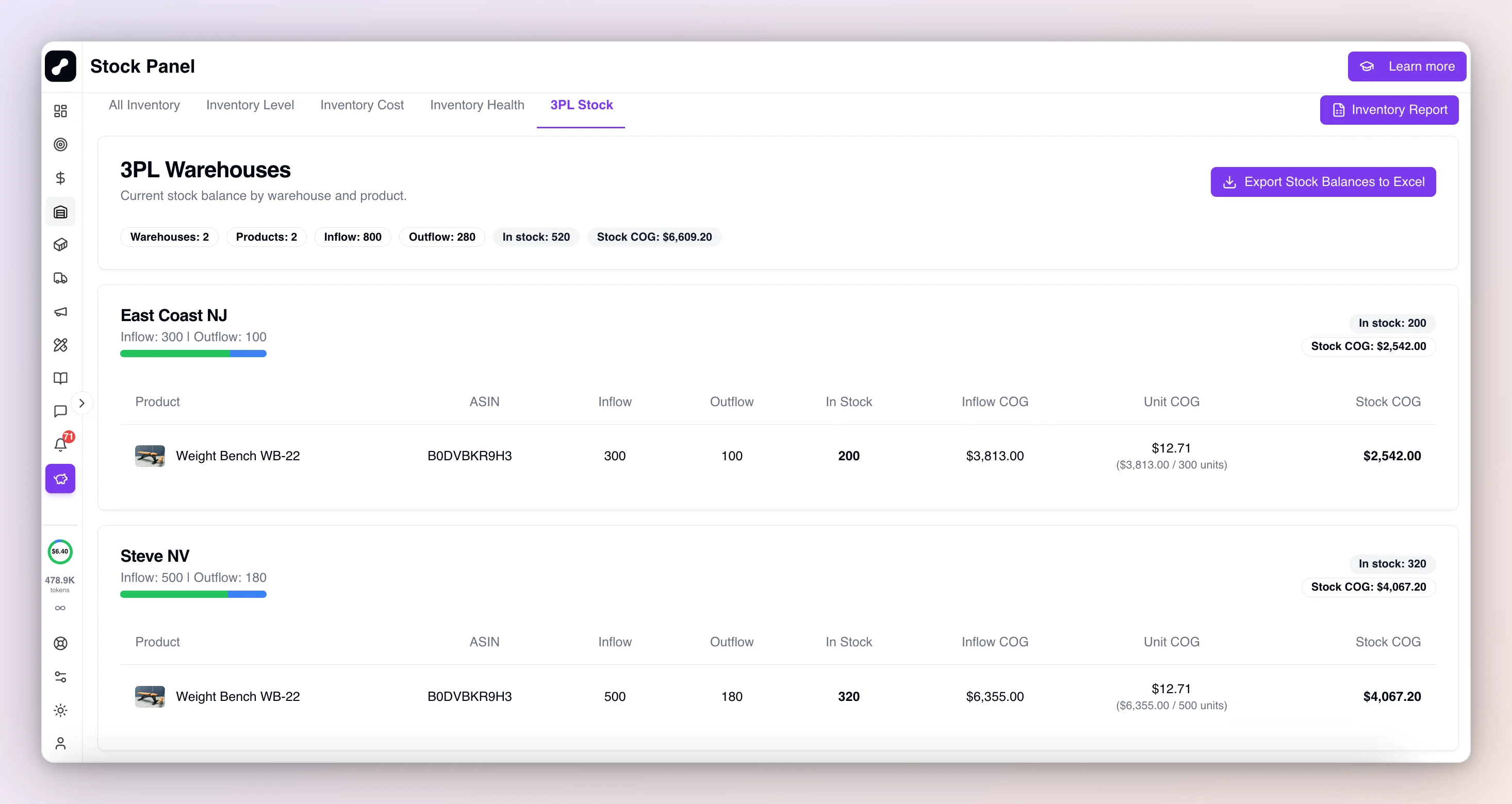
Check what's at each 3PL — open Inventory -> Stock Panel -> 3PL Stock.

You'll see the breakdown across your warehouses with the current balance per SKU.
4
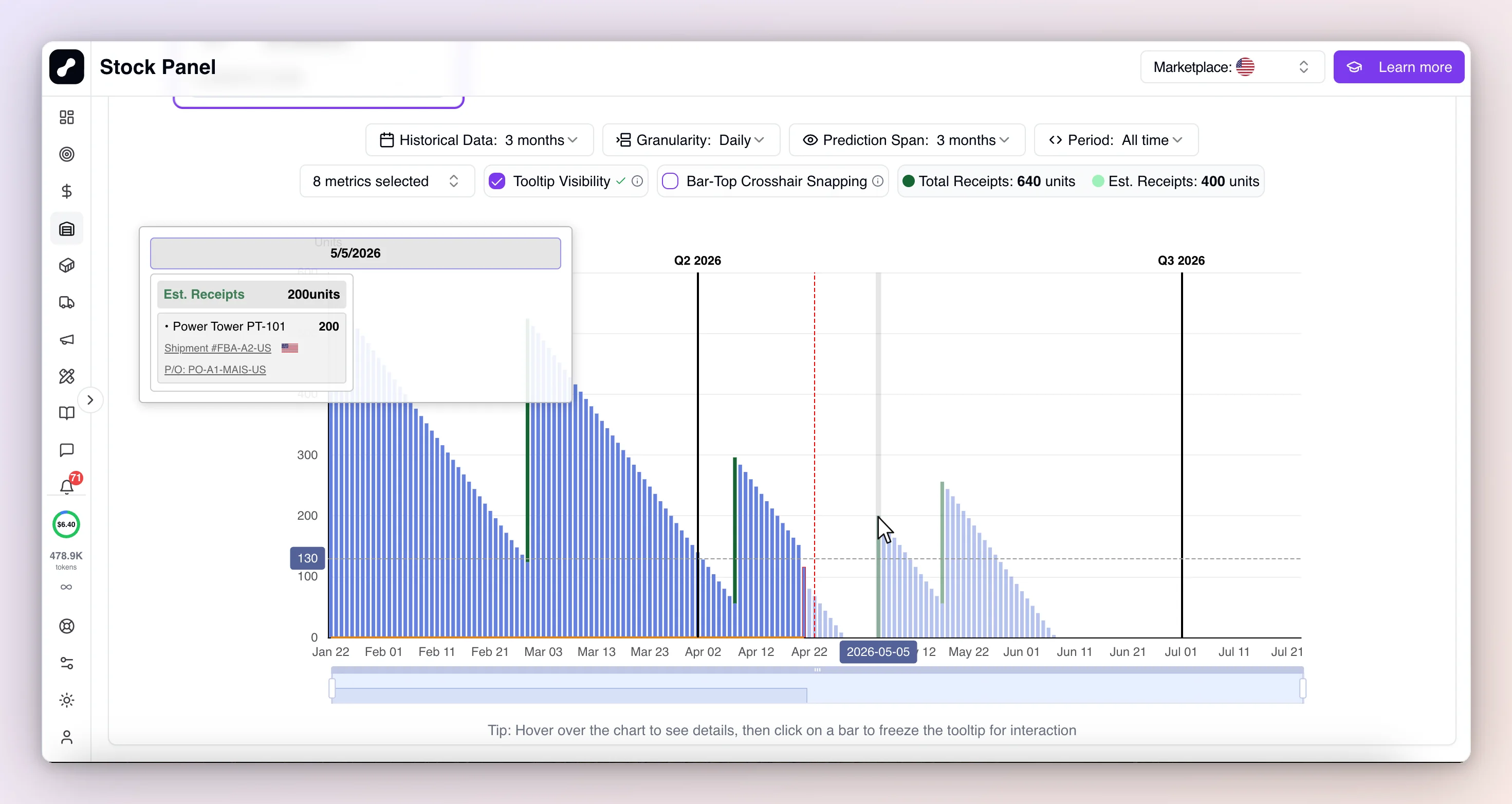
Check what's already on the way to FBA — open Inventory -> Stock Panel -> All Inventory.

The forecast graph shows current stock and arriving units from active shipments.
Result:
in seconds you know where to pull from — or whether a new order is actually needed.

2 weeks free 

No credit card required

Included in Pro plan

Use Case 2

Skip the New Purchase Order
If the Stock Is Already Yours

Before placing a new order with your supplier, take ten seconds to check whether that batch is already at a 3PL, at AWD, or at the supplier with no destination yet (Unallocated).

The route:

1
Check the full picture across your supply chain — open Purchase Orders -> Dashboard.

The Sankey diagram shows where each batch is and how much is still Unallocated.
2
Check what's at each 3PL — open Inventory -> Stock Panel -> 3PL Stock.

You'll see the current balance per SKU across your warehouses.
3
Check what's at AWD — open Inventory -> AWD Storage.  

You'll see On-hand and Available quantities per SKU.
Result:
the decision "order / don't order / order less" takes seconds instead of hours of manual checks.
See where every unit sits — and decide your next move in seconds
Or let Claude Code plan your restocking

Connect your AI agent (Claude Code or OpenAI's Codex)
via PROPAMP AI MCP server — it will pull your stock data across all locations into a table automatically with one prompt

2 weeks free
No credit card required
 Included in Pro plan
<